Techline Info |

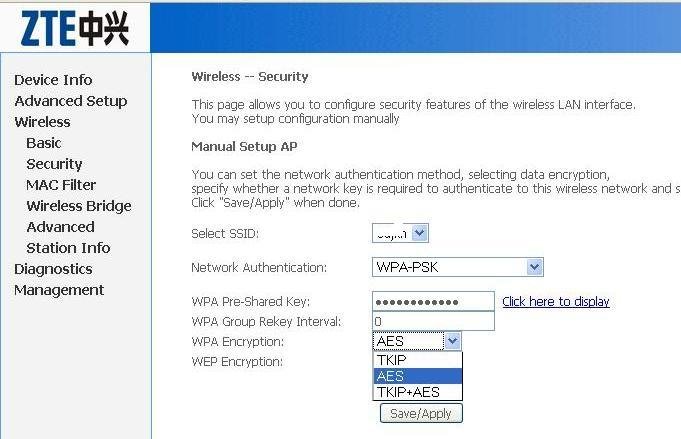
| WiFi configuration and security settings of ZTE-ZXDSL-531 ADSL Modem Posted: 26 Jun 2010 07:14 PM PDT ZTE ZXDSL 531 is a WiFi modem supplied by BSNL with their broadband connection. This guide help you to enable and configure the WiFi security settings of ZTE ZXDSL 531 Modem. With this guide, you can configure any type of WiFi modems irrespective of brand. 1 Connect your PC/laptop with the router using Ethernet cable and in your browser type http://192.168.1.1 2 A popup window will be displayed to enter user name and password – Type "admin" in both the field (Assuming that you have not changed the default password. If changed enter the same accordingly). 3. Click on the wireless menu – In Wireless you can see Basic, Security, Mac Filter, Wireless Bridge, Advanced and Station info Sub menus. Now you are in “Basic“menu. This page allows you to configure basic features of the wireless LAN interface. You can enable or disable the wireless LAN interface, hide the network from active scans, set the wireless network name (also known as SSID) and restrict the channel set based on country requirements. Click "Enable Wireless" check box and in the SSID field enter the name of Wireless network. Select the country of operation. You can enter the number of clients can access this network simultaneously. For Eg: If you put it "2" then maximum two computers can access this network at a time. Click ” Save /Apply” to configure the basic wireless options. Security Settings4. Click on the Security menu -This page allows you to configure security features of the wireless LAN interface. You can set the network authentication method, selecting data encryption, specify whether a network key is required to authenticate to this wireless network and specify the encryption strength. There are different WiFi security encryption standards. As per your operating system and the compatibility of WiFI adapters you can configure the settings accordingly. Details of the WiFi standards and their application will be explained in a separate post. Now we can select the most secured format.
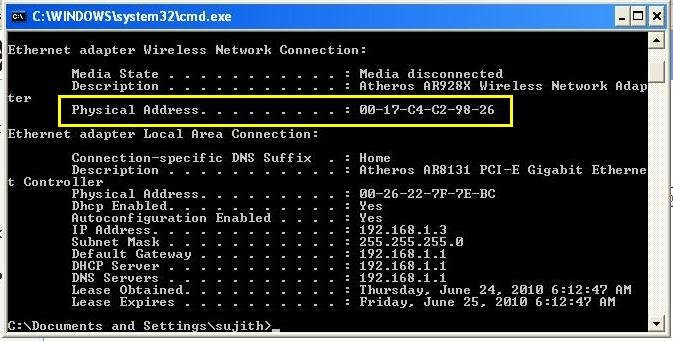
MAC Filtering Mac filtering will give you additional foolproof WiFi security. MAC (Media Access Control) address is a unique number of each network hardware. This is the identity of a machine . There will not be two network cards (Any type) with a same MAC address. This is the manufacture set hard coded one. Through the MAC filtering you can optionally allow or deny a particular WiFi device on your network. You have to enter the MAC address of the client machines in the Modem to allow or deny a particular machine. For example – You have four laptops in a network and you want to enable MAC filtering. For this the MAC address of each machines to be entered in the Modem for connectivity, means you have to save the addresses of all four machines in your Modem. How to find MAC address
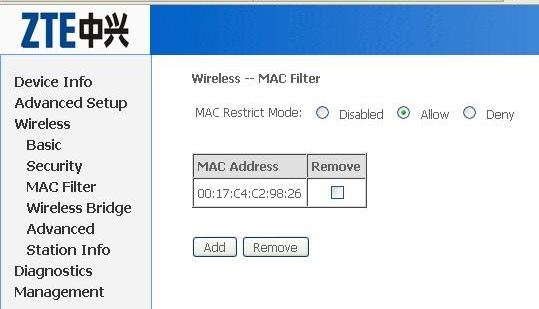
Click on the "MAC filter" menu of the Modem configuration page. In this page you can see MAC Restrict mode "Disabled" , "Allow" and "Deny". The default setting is "Disabled". Click on the Add button below and enter the noted down MAC address . Important: You might have noted down the MAC Address like this 02-14-C4-C2-98-26 but if you enter like this Modem will display an error message "invalid MAC address". You have to replace the "-" with ":" means to enter the address like 02:14:C4:C2:98:26 Then click "save/apply" button. Now your MAC address has been added. Like this way enter the MAC addresses of all the machines intended to use with the WiFi network. Now you can optionally allow or deny a particular or group of machines on your WiFi network. If you want to allow one or more machines – Set the "Allow" option and select the MAC addresses of corresponding machines to be allowed. To deny a particular machine , set the "Deny" option and select the machine to be denied. Advanced settings In the advanced settings menu of ZTE 531, you can configure advanced features of the wireless LAN interface. You can select a particular channel on which to operate, force the transmission rate to a particular speed, set the fragmentation threshold, set the RTS threshold, set the wake up interval for clients in power-save mode, set the beacon interval for the access point, set XPress mode and set whether short or long preambles are used. In the standard conditions the default setting will work. You need not to configure anything. Settings in ComputerIn the Control Panel select Network connections and Right click on the Wireless Network connection. Select "View Available Wireless Networks". A "wireless network connection" dialogue box will be opened which display the available connections within the range. Select your WiFI network and click "Connect" . Here you have to enter the same key which has been set in your Modem.
|


| You are subscribed to email updates from Techline Info To stop receiving these emails, you may unsubscribe now. | Email delivery powered by Google |
| Google Inc., 20 West Kinzie, Chicago IL USA 60610 | |
Techline Info Part 1
Techline Info Part 1
Techline Info Part 1
Tags: Techline Info, Techline Info watch online, full Techline Info video, Techline Info download, Techline Info torrent, free Techline Info, Techline Info megavideo, Techline Info full, Techline Info eng sub
0 comments:
Post a Comment